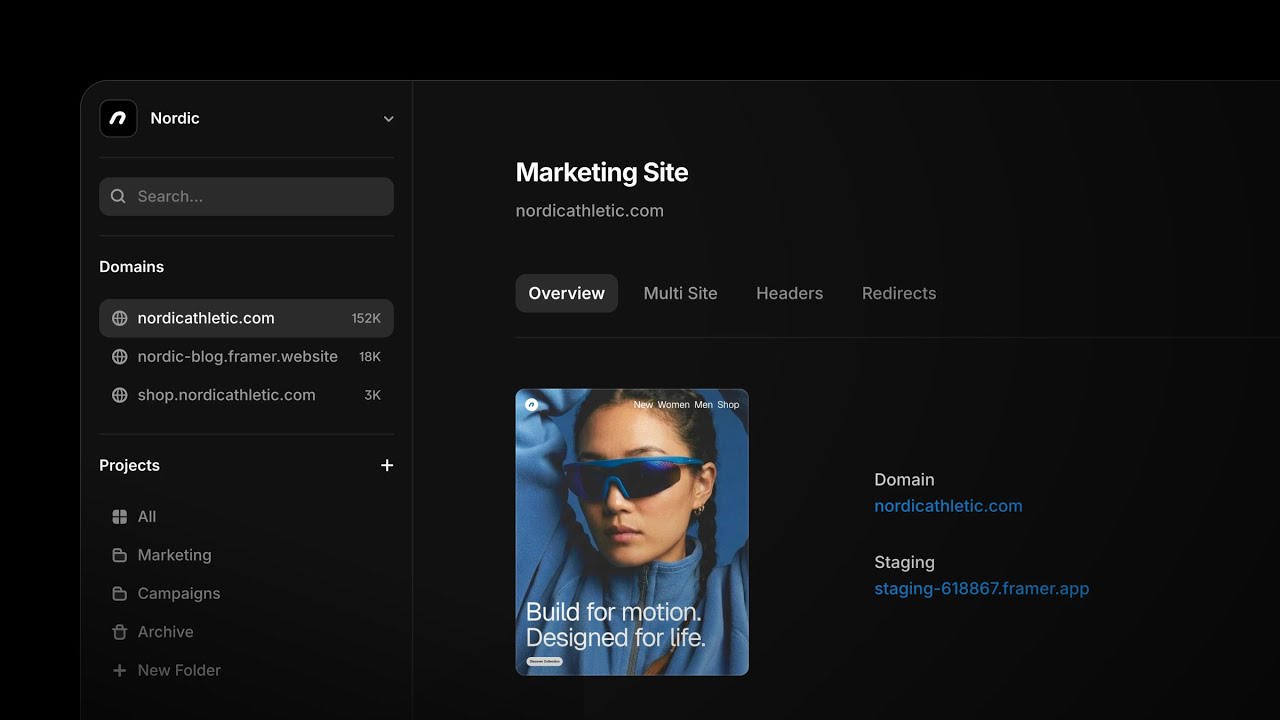
Publishing & Settings
·
1:16
·
14K views
·
About this lesson
Learn how to add password protection to your Framer website using simple steps. This tutorial shows you how to set up a password and enable/disable it for website access. Keep your content secure and restrict access to authorized users only.
https://www.youtube.com/watch?v=OtdrdSLJcy4&t=0s Introduction
https://www.youtube.com/watch?v=OtdrdSLJcy4&t=1s Accessing Project Settings
https://www.youtube.com/watch?v=OtdrdSLJcy4&t=3s Navigating to the General Tab
https://www.youtube.com/watch?v=OtdrdSLJcy4&t=7s Enabling Password Protection
https://www.youtube.com/watch?v=OtdrdSLJcy4&t=14s Customizing the Password
https://www.youtube.com/watch?v=OtdrdSLJcy4&t=21s Updating the Password
https://www.youtube.com/watch?v=OtdrdSLJcy4&t=28s No Need to Republish the Website
https://www.youtube.com/watch?v=OtdrdSLJcy4&t=32s Viewing the Password Prompt in the Browser
https://www.youtube.com/watch?v=OtdrdSLJcy4&t=37s Entering the Password for Access
https://www.youtube.com/watch?v=OtdrdSLJcy4&t=45s Browser Saving Password for Future Access
https://www.youtube.com/watch?v=OtdrdSLJcy4&t=49s Entering Password Again After Republishing
https://www.youtube.com/watch?v=OtdrdSLJcy4&t=56s Disabling Password Protection
https://www.youtube.com/watch?v=OtdrdSLJcy4&t=64s Checking Website for Password Removal
https://www.youtube.com/watch?v=OtdrdSLJcy4&t=69s Conclusion: Securing Your Website
🌞 Try Framer for free: https://framer.com
🎉 Follow on Twitter: https://twitter.com/framer
💎 Join Community: https://www.framer.community