Layout & Design

Sharing Vector Sets Across Projects (Vectors Lesson 7)

Sharing Vector Sets Across Projects (Vectors Lesson 7)

Sharing Vector Sets Across Projects (Vectors Lesson 7)

Justin

·

3:41

·

1.4K views

·

About this lesson

In this lesson, we’ll show you how to share Vector Sets across projects with a share link—then unlink them when you need a fully local version you can edit and customize.

00:00 Introduction

00:47 Sharing a Vector Set

01:25 Linked vs Unlinked

02:29 How to Unlink a Vector Set

03:10 The Vector Set Marketplace

03:24 Wrap Up

Check out the full course here: https://www.framer.com/academy/courses/mastering-vectors-in-framer

Sign up: https://framer.link/yt

Follow: https://framer.link/yt-x

Learn: https://framer.link/yt-academy

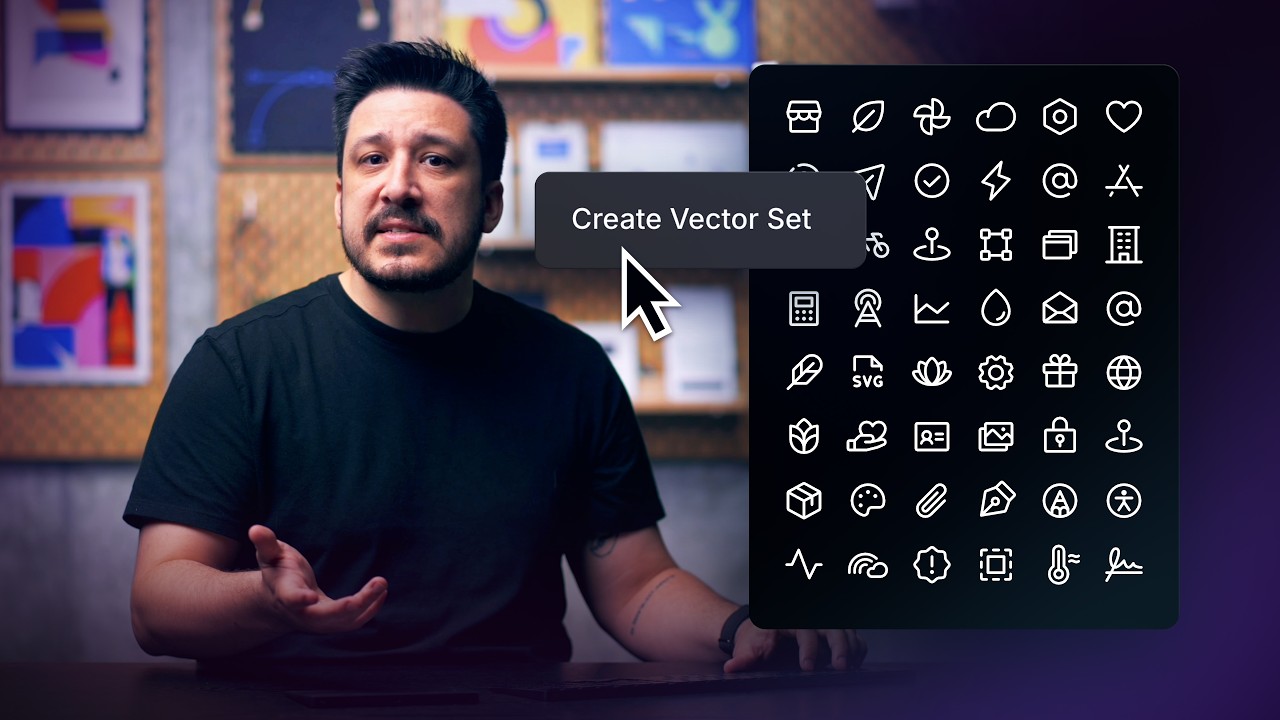
0:00Now that we know vector sets can help0:02[music] us build solid icon systems, the0:05real win is being able to carry that0:07[music] same set into other projects. So0:10in this lesson, we'll cover [music] how0:12to share vector sets from one project to0:14another, how to keep it linked for0:16consistency or unlink it to customize it0:20per project.0:25Sharing a vector set isn't just a0:27convenient thing. It's how we keep our0:30icon systems consistent as we move0:33across projects. This allows us to pull0:36the same set into new projects instantly0:39without reimpporting SVGs or ending up0:42with multiple almost the same versions0:45of a vector set. And as we've learned0:48throughout this course, vector sets live0:51in the assets panel. So to share one to0:54a new project, we'll start there. Scroll0:58down to vectors, find the set we want.1:00Then either rightclick or click the1:02ellipsus next to it and choose copy URL.1:06With that URL copied, we can jump into a1:09new or existing project. And from here,1:12we can hit commandV to paste the URL,1:16and Framer will import it right onto the1:19canvas. And once it's in, we'll have1:21access to every icon in that set, just1:24like we're used to. Now, if we head back1:27to the assets panel, we'll notice that1:29the vector set we just imported shows up1:32inside a folder that sits outside of1:35this specific project. That's because1:38it's still linked to the original1:40source. So, in this project, we can use1:42the icons, but we can't edit the set,1:45customize it, or add new icons to it1:48yet. Now, linked vector sets are great1:52when we want consistency across multiple1:55projects, like a shared brand icon1:57system used across a bunch of marketing1:59pages or as a source that feeds icons2:03into multiple sites. That means any2:05updates to the vector set would need to2:07happen to the original source, which is2:10within the original project where the2:12set was created. If the original vector2:15set gets updated at any point, we'll see2:18a small update button appear next to2:20that set in the assets panel. Clicking2:23it will pull those latest changes into2:26the version we're using in this project.2:29Now, the reason we'd unlink a vector set2:31from the original source is if we wanted2:34to make it our own. So, if we needed to2:37tweak a few shapes, rename some layers,2:40add a couple new icons that only matter2:42for this specific project, whatever the2:44use case, unlinking is super simple.2:47Just head to the assets panel, find the2:50vector set, then either right-click or2:52click the ellipsus and choose unlink.2:56Framer will then pull down a duplicate2:58of all of the icons from the original3:00source and move them into the project's3:02vector section. So, the set becomes3:05local, allowing us to edit and customize3:08it freely, just like we're used to. And3:11while sharing vector sets between your3:13projects is already super easy, you can3:15take it a step further by publishing3:17your own custom vector sets to the3:19Framer marketplace so anyone in the3:22Framer community can use them. And3:24that's it. Now it's your turn to build,3:27organize, [music] and reuse your vector3:29sets across everything you ship. Thanks3:32for watching, and I'll see you in the3:34next one.

Watch on YouTube ↗

More in this topic

8 Framer shortcuts you're probably sleeping on4:19
8 Framer shortcuts you're probably sleeping on
Layout & Design3K views · 2 months ago
Framer Update: Stack Sorting and Bento Grids2:16
Framer Update: Stack Sorting and Bento Grids
Framer Update7K views · 2 months ago
Connecting Vector Sets to the Framer CMS (Vectors Lesson 6)3:38
Connecting Vector Sets to the Framer CMS (Vectors Lesson 6)
Layout & Design2K views · 3 months ago
Animating Vectors in Framer (Vectors Lesson 5)4:25
Animating Vectors in Framer (Vectors Lesson 5)
Layout & Design4K views · 3 months ago
Customizing Vectors with Variables in Framer (Vectors Lesson 4)4:59
Customizing Vectors with Variables in Framer (Vectors Lesson 4)
Layout & Design3K views · 3 months ago
Replace component instances site-wide in Framer1:39
Replace component instances site-wide in Framer
Layout & Design4K views · 4 months ago
Creating and Organizing Vector Sets in Framer (Vectors Lesson 3)6:58
Creating and Organizing Vector Sets in Framer (Vectors Lesson 3)
Layout & Design3K views · 4 months ago
Creating a fixed footer reveal in Framer6:25
Creating a fixed footer reveal in Framer
Layout & Design7K views · 4 months ago

Create a free website with Framer, the website builder loved by startups, designers and agencies.