Layout & Design, Navigation
Framer Sites: Overlays
Framer Sites: Overlays
Framer Sites: Overlays
·
6:20
·
86K views
·
About this lesson
Check out the Overlays playground including 8 examples → https://overlay-playground.framer.website/
Learn how to design overlays from scratch. Covering slide-in sidebars, slide-in topbars, centered modal windows and more.
🌞 Try Framer for free: https://framer.com
🎉 Follow on Twitter: https://twitter.com/framer
💎 Join Community: https://www.framer.community
0:00yo my name is benjamin and in this video0:03i'll show you how to design overlays in0:05framers sites i want to cover three0:08patterns0:09a slide-in sidebar0:12a slide-in top bar0:15and a centered modal window0:19let's start with our sidebar0:22here i have a button0:25and i would like clicking on this button0:27to trigger our sidebar overlay0:32to add an overlay i can simply click on0:34the overlays header in the property0:37panel0:38and doing so brings me into overlay edit0:41mode0:43here you get a backdrop applied by0:45default0:47and a bunch of properties you can use to0:49customize your overlay0:52you also get the viewport control this0:55means that all layers within your0:57overlay are positioned relative to the1:00viewport1:02you can draw layers like you normally1:04would1:06styling layout and even adding effects1:10all work like you're used to1:13this means i can also copy and paste1:15layers i have already designed directly1:18onto the overlay1:20so let's copy and paste our sidebar1:27i'm going to give it 20 pixels of margin1:33and we can click done to exit the1:36overlay edit mode1:39and let's give this a preview1:47now clicking on our button gives us our1:50sidebar1:51and our1:52backdrop both appearing and disappearing1:56instantly2:00notice how our sidebar sits on top of2:02our icon2:04yet our trigger sits on top of the2:07sidebar2:08this is because i have manually added a2:11z-index property to the trigger2:16which you can see2:18over here2:21giving your trigger a higher z-index2:23allows you to use it as a toggle for2:25your overlay2:27meaning i can use the button to both2:29open and dismiss the overlay2:35next let's add some animations to our2:38overlay2:39to go back into the overlay edit mode i2:42can simply click on overlay2:48and let's give this a different preset2:53so setting a preset2:55will overwrite these properties below2:59which you could also customize if you3:01would like3:06and let's also add an appear effect to3:08our sidebar3:12here we also get a bunch of presets i'm3:15going to select slide in left3:18but let's customize it a little bit3:20[Music]3:26now let's give this a preview3:33[Music]3:35there we go3:37now we have a backdrop that fades in and3:39out3:40and a sidebar that slides in from the3:43left3:44we could customize this further3:47so maybe we want our backdrop to be3:50transparent3:59nice4:01as you can see you can have a backdrop4:03that is completely transparent yet still4:06dismissible4:08so that's pretty much it for our sidebar4:11let's quickly turn this into a top bar4:14instead4:16i can remove4:17my sidebar4:19and bring in our top bar4:25[Music]4:28i'm going to add 20 pixels of margin4:30again4:32and let's give this a slide in top4:34preset which i think will do just fine4:39and now if we give this a preview4:42we have very quickly designed a simple4:45slide in top bar4:49finally let's have a look at the modal4:53i'm gonna copy and paste this in4:56center it4:59now let's make this a blocking modal5:02meaning it5:04has a backdrop5:06but it's not dismissible5:09so how now would we close out of the5:12overlay5:14so any layer you draw or paste onto your5:17overlay has access to a close overlay5:21interaction which you can add right here5:26so we're adding a close overlay5:28interaction to our close icon here5:32and let's also give our modal5:34a skill in preset that's fine5:39and let's have a look5:43so now our modal is not dismissible by5:46clicking5:47outside of the modal itself5:51but i can click on the close icon to5:54dismiss the overlay5:57and there we go5:59that was a quick look at how to design6:02overlays in framer sites6:05thank you for watching and i hope you6:07enjoyed the video
More in this topic
 4:19
4:198 Framer shortcuts you're probably sleeping on
Layout & Design3K views · 2 months ago
 2:16
2:16Framer Update: Stack Sorting and Bento Grids
Framer Update7K views · 2 months ago
 3:41
3:41Sharing Vector Sets Across Projects (Vectors Lesson 7)
Layout & Design1K views · 3 months ago
 3:38
3:38Connecting Vector Sets to the Framer CMS (Vectors Lesson 6)
Layout & Design2K views · 3 months ago
 4:25
4:25Animating Vectors in Framer (Vectors Lesson 5)
Layout & Design4K views · 3 months ago
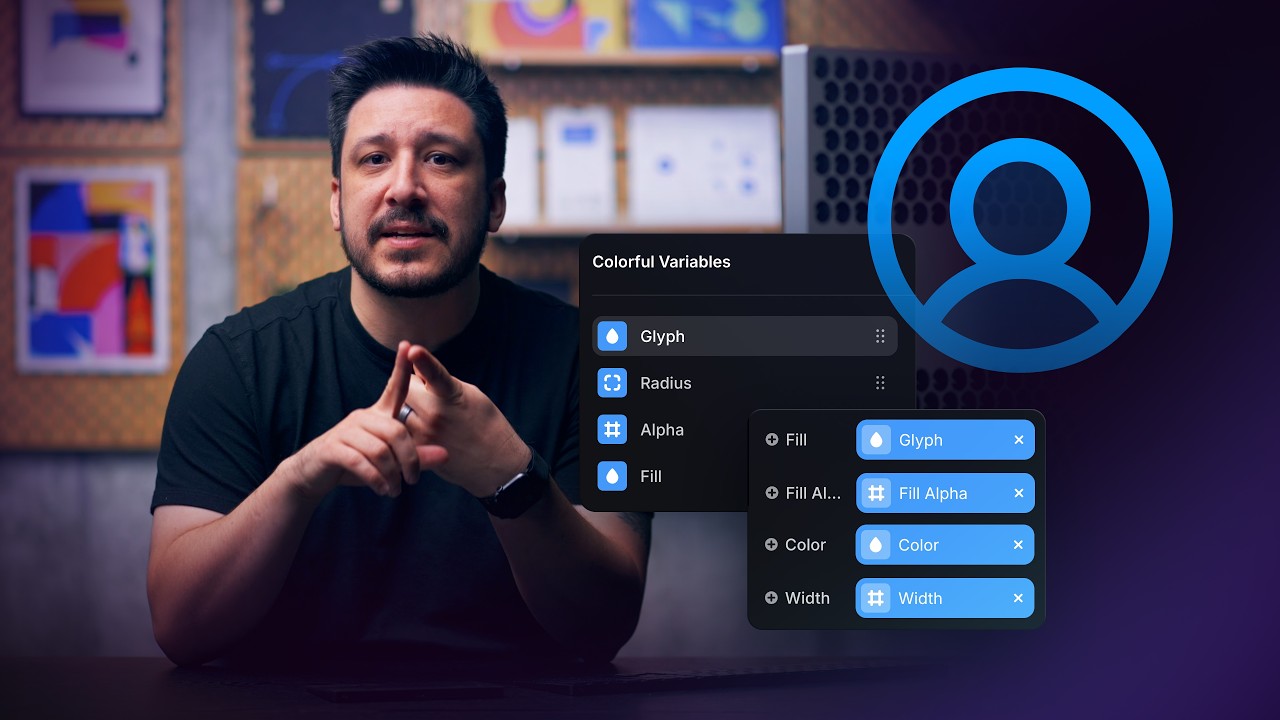 4:59
4:59Customizing Vectors with Variables in Framer (Vectors Lesson 4)
Layout & Design3K views · 3 months ago
 1:39
1:39Replace component instances site-wide in Framer
Layout & Design4K views · 4 months ago
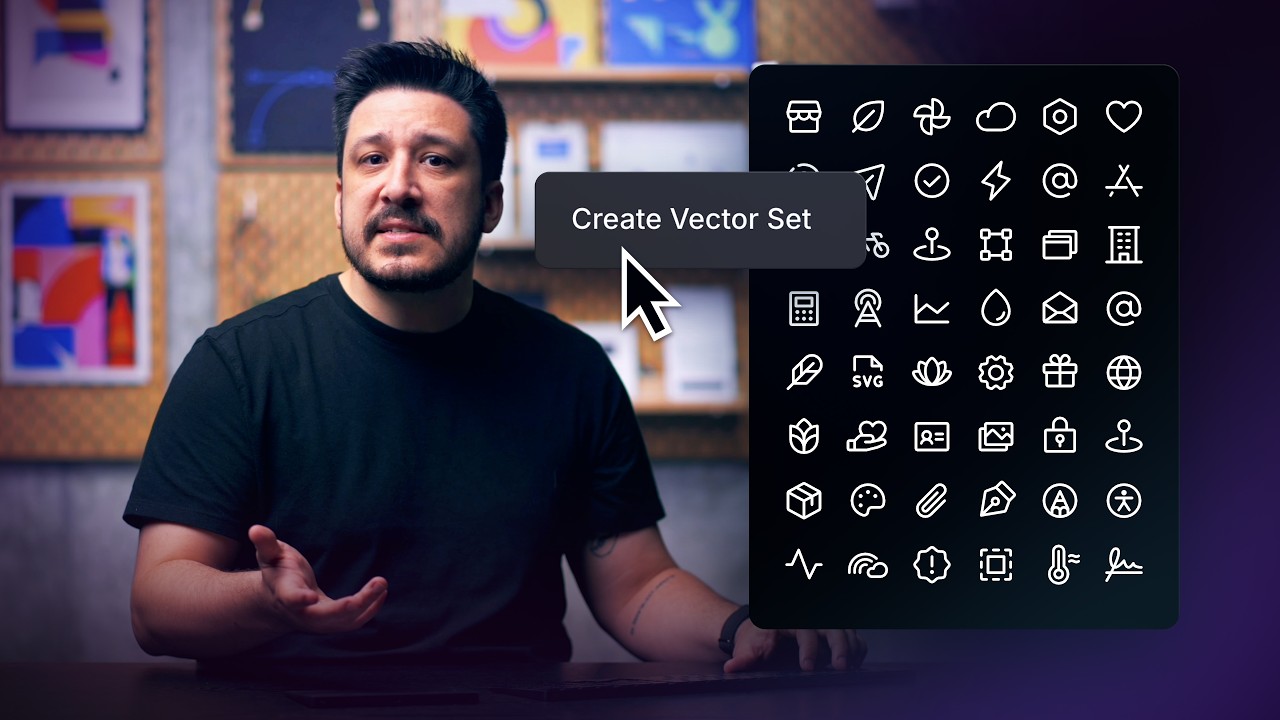 6:58
6:58Creating and Organizing Vector Sets in Framer (Vectors Lesson 3)
Layout & Design3K views · 4 months ago